---
title: Why does the Price Comparison Tool not display on my website?
description: Why does the Price Comparison Tool not display on my website?
---
[Skip to content](https://support.directbookingtools.com/why-does-the-price-comparison-tool-not-display-on-my-website#main-content)
English
Show submenu for translations
[Request More Support](https://support.directbookingtools.com/kb-tickets/new?hsLang=en) [Customer portal](https://support.directbookingtools.com/tickets-view?hsLang=en)

Open main navigation
Close main navigation
- English
Show submenu for translations
- [Request More Support](https://support.directbookingtools.com/kb-tickets/new)
- [Customer portal](https://support.directbookingtools.com/tickets-view)
How can we help you?
- There are no suggestions because the search field is empty.
1. [Knowledge Base](https://support.directbookingtools.com/?hsLang=en)
2. [Price Comparison Tool](https://support.directbookingtools.com/price-comparison-tool?hsLang=en)
3. [Troubleshooting](https://support.directbookingtools.com/price-comparison-tool?hsLang=en#troubleshooting)
June 5, 2025
# Why does the Price Comparison Tool not display on my website?
#### 🧰 Prerequisites
- Access to Direct Booking Tools dashboard
- Account is active and subscription is active
- OTA pricing for selected dates are higher than your direct bookings
- Direct Booking Tools script is added to your website
---
#### 🔧 Step-by-Step Instructions
### **Step 1: Verify account is Active**
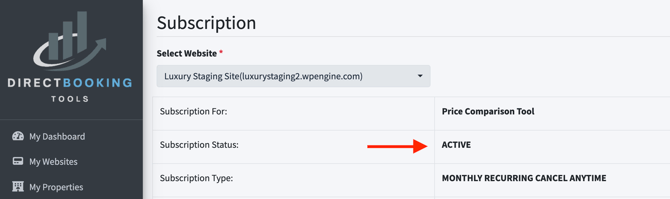
You will need a registered account with Direct Booking Tools to verify if the account is active.
- Login into your DBT dashboard with valid login.
- Go to Subscription on the left side menu
- Verify if the account is active, see below for visual
### **Step 2: If your account is Active then check properties**
- Login into your DBT dashboard
- Go to My Properties on the left side menu
- Select ADD/VIEW PROPERTIES to view onboarded properties
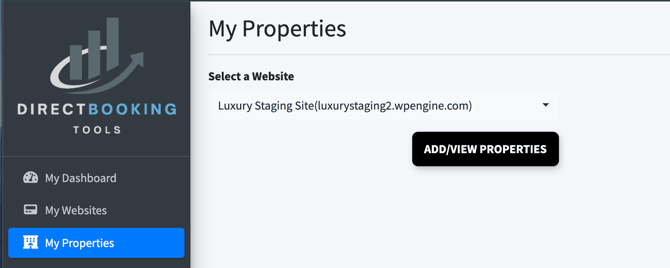
Once you are able to view all properties enabled for your dashboard, check to see if the specific property is enabled for Price Comparison Tool by reviewing the Action options at the right side of the property row:
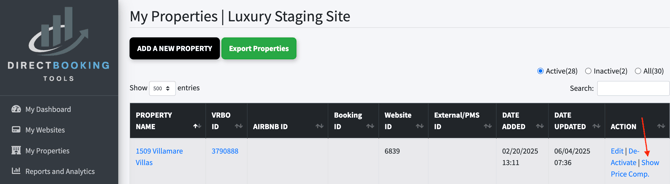
If the property row Action displays "Show Price Comp." then your property is enabled for the Price Comparison Tool when it is triggered. If the property row Action displays "Hide Price Comp." then you will need to select it to change to "Show Price Comp.
#### 🧯 Common Issues
The Price Comparison Tool is designed to display when your OTA pricing is HIGHER than your direct bookings on your website. It will not display if your OTA pricing is LESS than your direct bookings on your website.
**Issue:** OTA pricing is higher for quotes dates for specific property.
**Solution #1:** Review your OTA pricing for selected dates and compare & adjust so they are higher than your direct bookings.
**Solution #2:** Use the Weekly Price Anomalies report that is emailed to you to review which properties showed a lower price than your direct bookings and adjust accordingly for specific OTA enabled properties.
- [General](https://support.directbookingtools.com/general?hsLang=en#main-content)
- [Dashboard Access](https://support.directbookingtools.com/general?hsLang=en#dashboard-access)
- [Marketing](https://support.directbookingtools.com/general?hsLang=en#marketing)
- [Code Insertion](https://support.directbookingtools.com/general?hsLang=en#code-insertion)
- [Support](https://support.directbookingtools.com/general?hsLang=en#support)
- [Troubleshooting](https://support.directbookingtools.com/troubleshooting?hsLang=en#main-content)
- [Tool Designer](https://support.directbookingtools.com/troubleshooting?hsLang=en#tool-designer)
- [Escalating Support](https://support.directbookingtools.com/troubleshooting?hsLang=en#escalating-support)
- [Account Access](https://support.directbookingtools.com/account-access?hsLang=en#main-content)
- [Users](https://support.directbookingtools.com/account-access?hsLang=en#users)
- [Analytics](https://support.directbookingtools.com/account-access?hsLang=en#analytics)
- [Properties Settings](https://support.directbookingtools.com/properties-settings?hsLang=en#main-content)
- [Add/Edit Properties](https://support.directbookingtools.com/properties-settings?hsLang=en#add-edit-properties)
- [Price Comparison Tool](https://support.directbookingtools.com/price-comparison-tool?hsLang=en#main-content)
- [Property Settings](https://support.directbookingtools.com/price-comparison-tool?hsLang=en#property-settings)
- [Troubleshooting](https://support.directbookingtools.com/price-comparison-tool?hsLang=en#troubleshooting)
- [Tool Designer](https://support.directbookingtools.com/price-comparison-tool?hsLang=en#tool-designer)
- [Code Insertion](https://support.directbookingtools.com/price-comparison-tool?hsLang=en#code-insertion)
- [Cart Saver Tool](https://support.directbookingtools.com/cart-saver-tool?hsLang=en#main-content)
- [Tool Designer](https://support.directbookingtools.com/cart-saver-tool?hsLang=en#tool-designer)
- [Cart Abandonment](https://support.directbookingtools.com/cart-saver-tool?hsLang=en#cart-abandonment)
- [Analytics](https://support.directbookingtools.com/analytics?hsLang=en#main-content)
- [DBT Dashboard](https://support.directbookingtools.com/analytics?hsLang=en#dbt-dashboard)
- [Forward Looking Demand](https://support.directbookingtools.com/analytics?hsLang=en#forward-looking-demand)
- [Rate Parity Monitoring](https://support.directbookingtools.com/analytics?hsLang=en#rate-parity-monitoring)
- [Tracking](https://support.directbookingtools.com/analytics?hsLang=en#tracking)
- [Notifications](https://support.directbookingtools.com/notifications?hsLang=en#main-content)
- [Users](https://support.directbookingtools.com/notifications?hsLang=en#users)
- [Reports](https://support.directbookingtools.com/notifications?hsLang=en#reports)
- [Billing](https://support.directbookingtools.com/billing?hsLang=en#main-content)
- [Change Billing](https://support.directbookingtools.com/billing?hsLang=en#change-billing)
- [Cancel Account](https://support.directbookingtools.com/billing?hsLang=en#cancel-account)
- [Subscription](https://support.directbookingtools.com/billing?hsLang=en#subscription)
# Booking Insights
[mailto:email@email.com](mailto:email@email.com)
Copyright © 2026, Booking Insights