---
title: How to use the PCT Tool Designer?
description: How to use the PCT Tool Designer?
---
[Skip to content](https://support.directbookingtools.com/how-to-use-the-pct-tool-designer#main-content)
English
Show submenu for translations
[Request More Support](https://support.directbookingtools.com/kb-tickets/new?hsLang=en) [Customer portal](https://support.directbookingtools.com/tickets-view?hsLang=en)

Open main navigation
Close main navigation
- English
Show submenu for translations
- [Request More Support](https://support.directbookingtools.com/kb-tickets/new)
- [Customer portal](https://support.directbookingtools.com/tickets-view)
How can we help you?
- There are no suggestions because the search field is empty.
1. [Knowledge Base](https://support.directbookingtools.com/?hsLang=en)
2. [Price Comparison Tool](https://support.directbookingtools.com/price-comparison-tool?hsLang=en)
3. [Tool Designer](https://support.directbookingtools.com/price-comparison-tool?hsLang=en#tool-designer)
June 4, 2025
# How to use the PCT Tool Designer?
## Optional: updating colors & text of the Price Comparison Tool
#### 🧰 Prerequisites
- Access to Direct Booking Tools dashboard
- Have RGB color values to enter into our tool designer
- Text for Heading and Comparison Rates
---
#### 🔧 Step-by-Step Instructions
### **Step 1: Log into your DBT Dashboard**
> Once logged in under Price Comparison Tool choose Tool Designer on the left side menu
### **Step 2: Update colors and text**
Keep in mind when onboarding we will set this up for you so we do not encourage you to adjust these options unless you are certain about them.
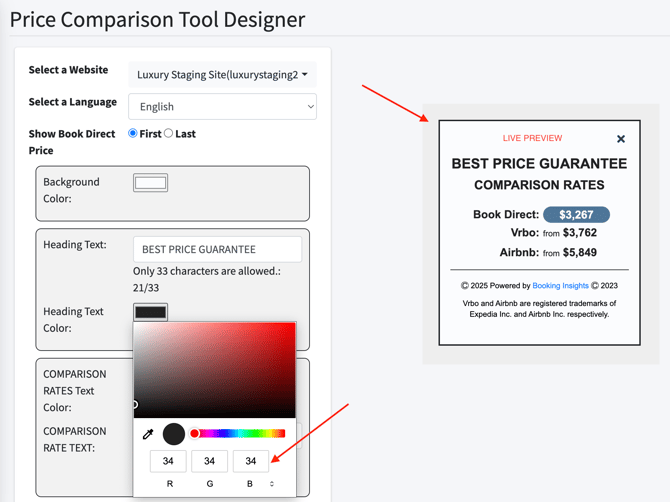
Colors will have two options for both text and one background color separated by their respective **Heading** and **Comparison Rates** options, both work the same so we will show an example for using the color designer. You will need the RGB values, if you are not sure what this is please ask your website designer or seek our help using the option Contact Us above.
### **Step 3: Click Save**
Once you edit the text and colors, you must scroll to the bottom and click **Save**.
---
#### 💡 Tips & Best Practices
When you make adjustments to the Tool Designer for Price Comparison widget, you will see a live and immediate change in the example that is loaded on page. Pay attention to make sure what you see is what you want published. This is the only Preview option. Once saved it will feed directly to the website.
**Important: We do not recommend changing any other options in the tool designer area, we use industry best practices and set these values during your onboarding process.**
- [General](https://support.directbookingtools.com/general?hsLang=en#main-content)
- [Dashboard Access](https://support.directbookingtools.com/general?hsLang=en#dashboard-access)
- [Marketing](https://support.directbookingtools.com/general?hsLang=en#marketing)
- [Code Insertion](https://support.directbookingtools.com/general?hsLang=en#code-insertion)
- [Support](https://support.directbookingtools.com/general?hsLang=en#support)
- [Troubleshooting](https://support.directbookingtools.com/troubleshooting?hsLang=en#main-content)
- [Tool Designer](https://support.directbookingtools.com/troubleshooting?hsLang=en#tool-designer)
- [Escalating Support](https://support.directbookingtools.com/troubleshooting?hsLang=en#escalating-support)
- [Account Access](https://support.directbookingtools.com/account-access?hsLang=en#main-content)
- [Users](https://support.directbookingtools.com/account-access?hsLang=en#users)
- [Analytics](https://support.directbookingtools.com/account-access?hsLang=en#analytics)
- [Properties Settings](https://support.directbookingtools.com/properties-settings?hsLang=en#main-content)
- [Add/Edit Properties](https://support.directbookingtools.com/properties-settings?hsLang=en#add-edit-properties)
- [Price Comparison Tool](https://support.directbookingtools.com/price-comparison-tool?hsLang=en#main-content)
- [Property Settings](https://support.directbookingtools.com/price-comparison-tool?hsLang=en#property-settings)
- [Troubleshooting](https://support.directbookingtools.com/price-comparison-tool?hsLang=en#troubleshooting)
- [Tool Designer](https://support.directbookingtools.com/price-comparison-tool?hsLang=en#tool-designer)
- [Code Insertion](https://support.directbookingtools.com/price-comparison-tool?hsLang=en#code-insertion)
- [Cart Saver Tool](https://support.directbookingtools.com/cart-saver-tool?hsLang=en#main-content)
- [Tool Designer](https://support.directbookingtools.com/cart-saver-tool?hsLang=en#tool-designer)
- [Cart Abandonment](https://support.directbookingtools.com/cart-saver-tool?hsLang=en#cart-abandonment)
- [Analytics](https://support.directbookingtools.com/analytics?hsLang=en#main-content)
- [DBT Dashboard](https://support.directbookingtools.com/analytics?hsLang=en#dbt-dashboard)
- [Forward Looking Demand](https://support.directbookingtools.com/analytics?hsLang=en#forward-looking-demand)
- [Rate Parity Monitoring](https://support.directbookingtools.com/analytics?hsLang=en#rate-parity-monitoring)
- [Tracking](https://support.directbookingtools.com/analytics?hsLang=en#tracking)
- [Notifications](https://support.directbookingtools.com/notifications?hsLang=en#main-content)
- [Users](https://support.directbookingtools.com/notifications?hsLang=en#users)
- [Reports](https://support.directbookingtools.com/notifications?hsLang=en#reports)
- [Billing](https://support.directbookingtools.com/billing?hsLang=en#main-content)
- [Change Billing](https://support.directbookingtools.com/billing?hsLang=en#change-billing)
- [Cancel Account](https://support.directbookingtools.com/billing?hsLang=en#cancel-account)
- [Subscription](https://support.directbookingtools.com/billing?hsLang=en#subscription)
# Booking Insights
[mailto:email@email.com](mailto:email@email.com)
Copyright © 2026, Booking Insights