
🧰 Prerequisites
-
Admin access to Direct Booking Tools Dashboard
-
Ability to view video on your computer or device
🔧 Step-by-Step Instructions
Step 1: Login into your DBT dashboard
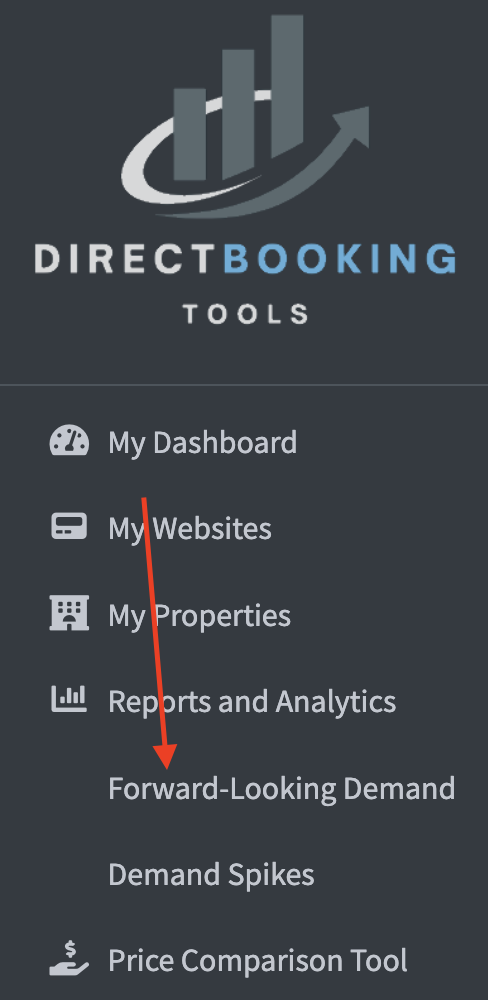
Once logged in select under Reports and Analytics > Forward-Looking Demand.
Step 2: Once selected it will show all of your analytics for DBT
Look at the 3rd row and you will see this:

Step 3: Toggle the Demand Filter you want to isolate your data for.
There are 5 types of demand filters:
- Property Type - This is the name you enabled or onboarded for the specific property
- # of Bedrooms - This is a numeric option to view X number of bedrooms
- Area - If enabled, you can view analytics for the specific Area when selected
- Complex - If enabled, you can view analytics based on the Complex when selected
- City - If enabled, you can view analytics based on the City when selected
💡 Tips & Best Practices
ALL FILTERS ARE ENABLED BY DEFAULT.
To isolate a demand filter, choose which filter you want and then with your cursor hover over the desired and choose ONLY. This will then only show analytics for that filter. If you have multiple filters e.g. City = Houston and want to see analytics for your 2 and 3 bedroom properties you can uncheck which bedroom counts not to view.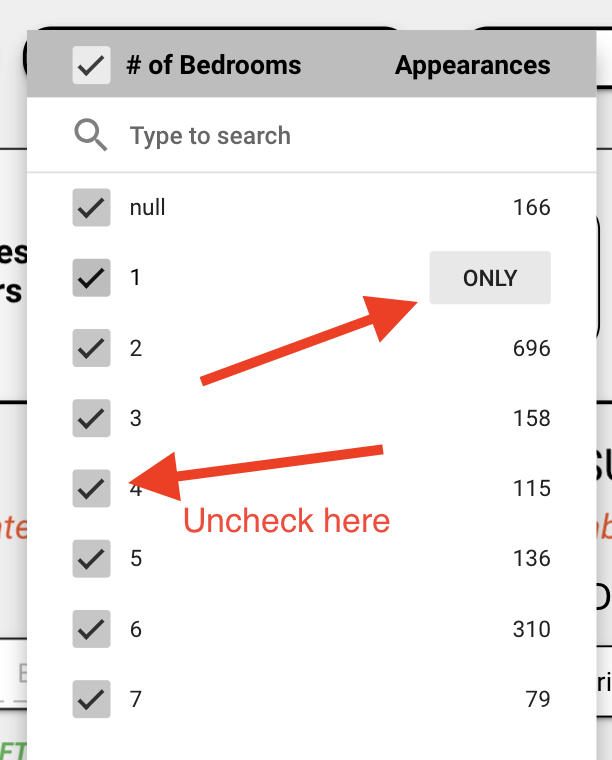
-
Tip 1: Enable demand filters by sending us these values for each property. You will need to request this and we will send you an spreadsheet which will have the columns which we will then upload to your dashboard so we can provide drill-down data.
-
Tip 2: Demand Filters can be used in tandem, meaning if you want to look at City = Houston but only want to look at a single Complex or Area in Houston this is possible.
🧯 Common Issues
Issue: Showing only the specific demand filter and cannot reset filters to show all
Solution: Open the drop down for the demand filter you want to reset and toggle the top check box until all filter options have a checkmark.

Issue: Why does my filter display "null?"
Solution: Null filter means for the specific demand filter there is no option and defaults to NULL. Follow Tip #1 and request a file from us so you can update these 5 values for each property enabled in your dashboard.