
🧰 Prerequisites
The following is required to update notifications.
-
Request must be made by Account Owner or Primary Stakeholder
-
Adding a new email address to your weekly reports requires the registered accounts with Direct Booking Tools
-
Admin access to Direct Booking Tools Dashboard
🔧 Step-by-Step Instructions
Option 1: For new users, send email from account owner or primary stakeholder
Use the Contact Us button located in the top right to send us a notification for the new user to get added to the weekly reports. The information you send us must provide First Name, Last Name, Email Address, and confirm the new users has a cell phone which can receive SMS text notification for our OTP security feature.
Option 2: Existing Users but are not enabled for Weekly Reports
This option is for users who currently have access to the DBT dashboard but are not receiving weekly reports. By default, weekly reports are not enabled. You will need to do the following.
- Login into the Direct Booking Tools Dashboard here
- Once logged in, find on the left side contextual menu My Account
- You will then see the following option set, this is an example but follows the same process of enabling weekly reports for registered users.
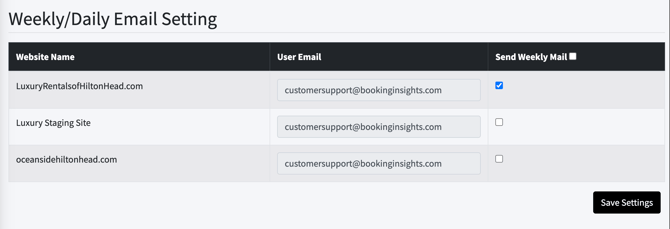
- Scroll down until you see the Weekly/Daily Email Setting
- If you see the email address you want to enable for reports by email check the box Send Weekly Email.
- Then click Save Settings.
Final Step : Whitelist our email address
To make sure you are getting the reports, please whitelist help@directbookingtools.com
If you find that the email address is already enabled, please check your Spam/Junk Folder on the email client you are using. You can Google "How to Whitelist Email Addresses" Find the email client you are using and follow the steps.